Start taking appointments today
A booking link lets buyers pick a time on your calendar from your card. Get one free, then paste it into Key Numbers. About 10 minutes.
Option 1: Google Calendar (free)
You need a Google account (Gmail works). Do the setup on a computer; Google's phone app can't create booking pages.
- On a computer, open calendar.google.com and sign in.
- At the top left, click Create, then Appointment schedule.
- Name it, for example Model Home Tour. Pick the length (30 or 60 minutes) and the days and hours you're available. Click Next.
- Add the location (the model home address) and any questions you want to ask. Click Save.
- On the left side of Google Calendar, under Booking pages, point at your schedule and click the copy link icon.
Bookings land on your Google Calendar, and both you and the buyer get an email confirmation.
Option 2: Calendly
The free plan covers one appointment type and one calendar, with Calendly's branding. Paid plans start around $12 a month and add more types, reminders and your own branding.
- Go to calendly.com and sign up with your Google or Microsoft email. This works on a phone too.
- Connect your calendar so you're never double-booked.
- Edit the starter event: name it Model Home Tour, set the length, location and your available hours.
- Tap Copy link on the event.
Add it to your Key Numbers card
- In Key Numbers, tap Edit card.
- Under Card content, tap the pencil on Book a tour. No Book a tour row? Tap + Add Content, then the booking button.
- Paste your link into Booking link.
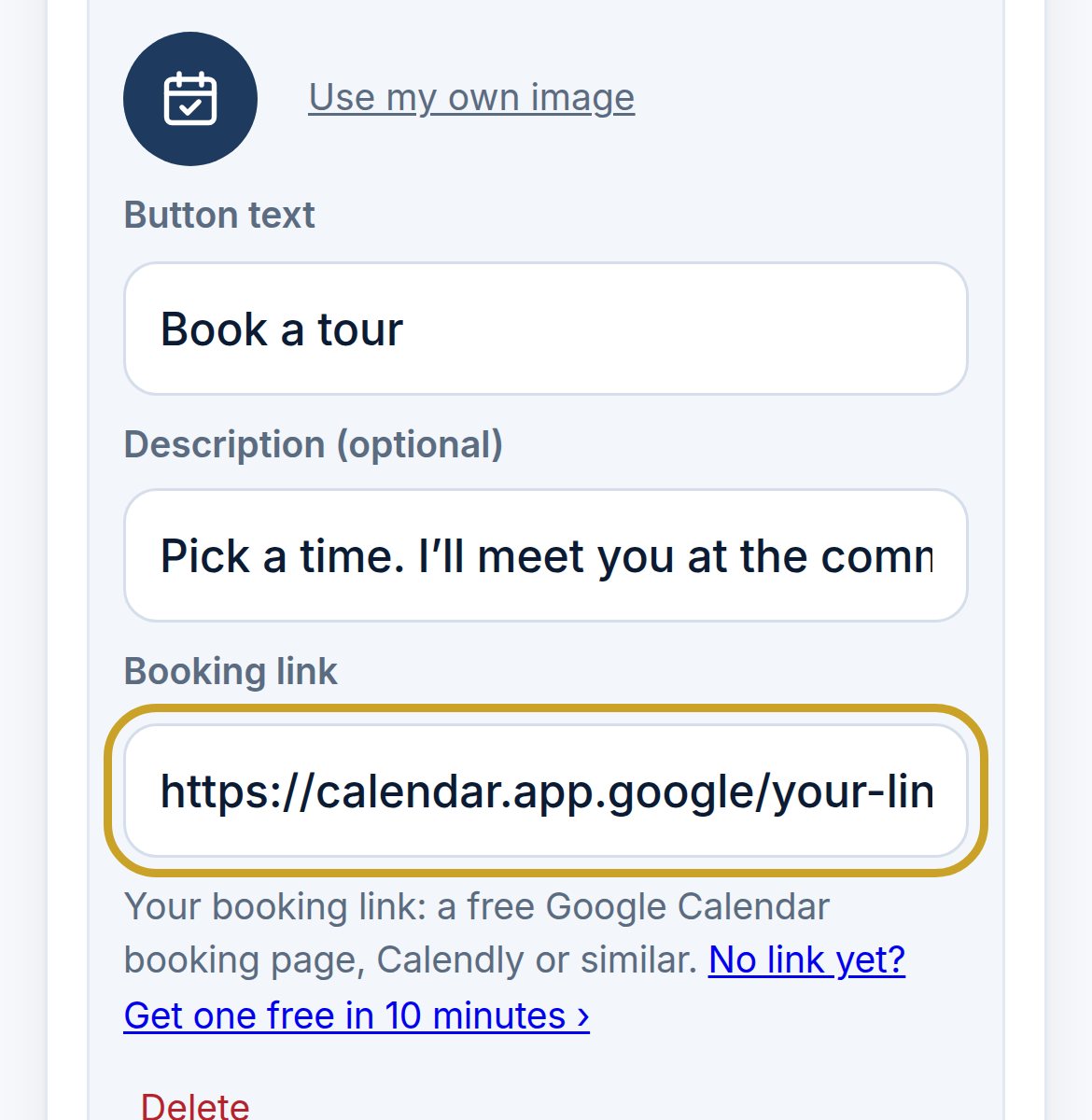
- Tap Save, then Preview. Tap Book a tour to make sure your calendar opens.
Buyers and agents now fill in a short form, then pick a time on your calendar. You get the lead in Key Numbers and the appointment on your calendar.
Prices and features of Google and Calendly can change; check their sites for the latest.